Get in touch
I'm always excited to take on new projects and collaborate with innovative minds.
Phone
Website
Address
Dhaka, bangladesh
I'm always excited to take on new projects and collaborate with innovative minds.
Dhaka, bangladesh
SSD vs HDD explained for office PCs: speed, reliability, capacity and cost, so you can choose the right storage for work computers.
If your office computer takes minutes to start, programs open slowly, and saving a large file feels like a coffee break, the hard drive is often the culprit. The single most effective upgrade for an older office PC is usually not more memory or a faster processor — it is replacing the old hard disk drive (HDD) with a solid-state drive (SSD). But that does not mean HDDs are useless. This guide explains the difference, so you can choose the right storage for each computer in your office.
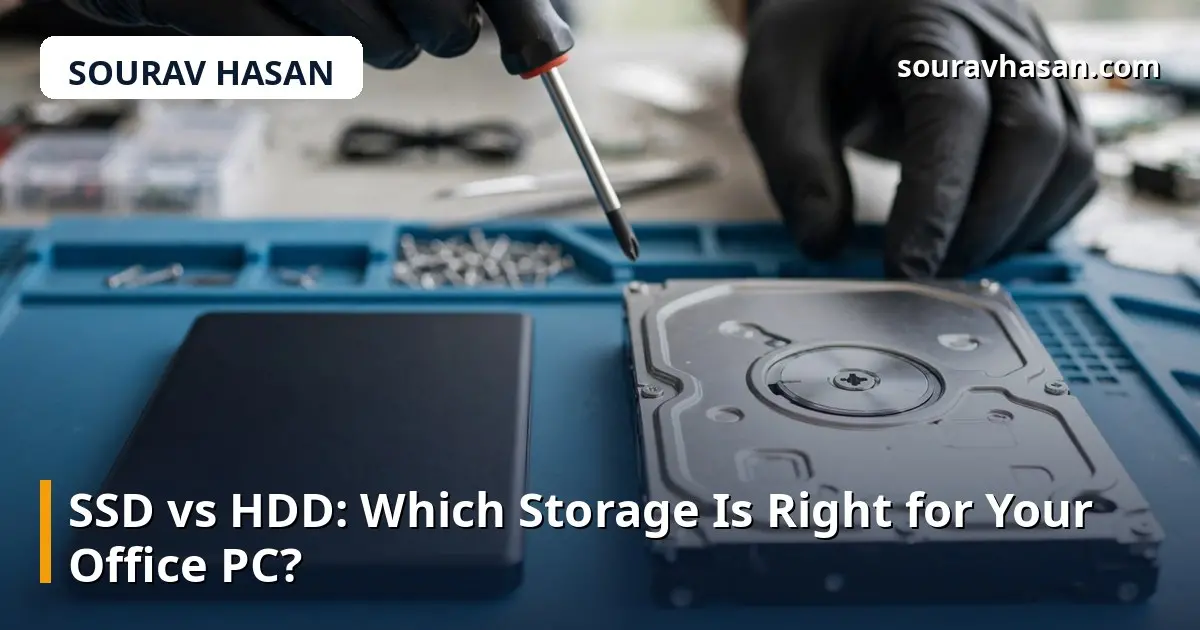
An HDD stores data on spinning magnetic disks, read by a moving arm — a bit like a tiny record player. It has moving parts, and every read or write involves physically moving to the right spot on the disk. An SSD has no moving parts at all; it stores data in flash memory chips, similar in principle to a USB stick, and reads and writes electronically.
That difference in mechanics explains almost everything else. Because an SSD has nothing to spin up or move, it can find any piece of data almost instantly, while an HDD has to wait for the disk to rotate and the arm to arrive. In everyday use, that translates into a computer that starts in seconds instead of minutes, programs that open immediately, and files that copy far faster.
Speed is the SSD's biggest advantage, and it is the one your team will notice on day one. A typical office SSD reads and writes data several times faster than a traditional HDD. Windows or any operating system boots noticeably faster, large spreadsheets and design files open without the long wait, and the computer feels responsive in a way that makes the whole working day smoother.
For a small business, this is a productivity question, not a technical one. If every employee waits a few minutes a day for a slow computer, that time adds up across a team and a year. An SSD upgrade is one of the cheapest ways to give that time back, and it is usually far cheaper than replacing the whole computer.
Because an SSD has no moving parts, it handles bumps, drops and vibration far better than an HDD — which matters for laptops that travel between home and office. SSDs also run silently and use less power, which helps laptop battery life.
That said, neither type of drive lasts forever, and neither is a substitute for backups. An HDD tends to fail gradually — strange noises, slow reads, files that become hard to open — which sometimes gives you a warning. An SSD can fail with less warning, though modern SSDs are rated for many years of normal office use. The practical rule is the same for both: keep a backup of anything you cannot afford to lose. My guide on backing up your business data covers the habit that matters more than the drive you choose.
This is where the HDD still has a role. Per gigabyte, an HDD is considerably cheaper than an SSD, especially at large capacities. If you need several terabytes of storage — for example, for CCTV recordings, archived project files, or a media library — an HDD gives you that space at a fraction of the price.
For the main drive of an office PC, though, the math has changed. A 500 GB SSD now costs little more than a basic HDD of the same size did a few years ago, and 500 GB is plenty for the operating system, office software and everyday files of most office workers. For staff who work with large video or design files, 1 TB SSDs are the sensible choice.
You may see the term NVMe when shopping for SSDs. NVMe is a faster way for an SSD to connect to the computer, and NVMe drives are faster still than the older SATA type. For ordinary office work — documents, email, browsing, accounting software — the difference between a SATA SSD and an NVMe SSD is barely noticeable. For video editing or large file work, NVMe is worth it. Either way, any SSD is a huge step up from an HDD.
Swapping an HDD for an SSD in a desktop is a straightforward job for an IT person: clone the old drive onto the new one, swap the drives, and the computer starts up with everything in place. Laptops vary — some have an easily accessible drive bay, others need a technician. Before any upgrade, back up the data, check that the new drive fits the machine, and confirm the operating system licence will still activate after the change.
If the computer is very old — more than eight or ten years — an SSD will help, but the processor and memory may still hold it back. In that case, weigh the cost of the upgrade against a replacement machine. For most office PCs from the last five or six years, though, the SSD upgrade is the right call.
For normal office use, a modern SSD typically lasts many years — the manufacturer usually rates it for a total amount of data written that an office user would take a decade or more to reach. Heavy video editing or constant large writes shorten that, but for everyday work it is not something to worry about.
Yes. External SSDs in a small enclosure are fast, quiet and durable, and they are excellent for carrying large files between office and home. They cost more than external HDDs of the same size, but for files you access often, the speed is worth it.
Usually it makes a dramatic difference, but not always a complete fix. If the computer also has very little memory, or the processor is extremely old, those will still limit it. Check the whole machine before spending money — but in my experience, the drive is the bottleneck far more often than people expect. A slow website is a different problem, covered in my guide to speeding up a slow website.
No — and you should not. Defragmenting is an HDD maintenance task. SSDs handle their own data organisation, and defragmenting one only adds unnecessary wear. Modern operating systems know the difference and will not defragment an SSD automatically.
For any computer people actually work on, choose an SSD. It is faster, quieter, tougher and more power-efficient, and the price difference for everyday capacities is now small. Keep HDDs for the jobs they are still best at: cheap, large-capacity storage for archives and backups. If your office still runs on old hard drives, an SSD upgrade is the quickest, cheapest way to make every computer in the room feel new again.
Your email address will not be published. Required fields are marked *